

iPhones and iPads have strong privacy settings that block get-paid-to offer tracking by default. To get paid for games on Freecash, Swagbucks and other reward sites, you need to change several of them before you install anything.
These are the settings I change. Menu names can move between iOS versions, so if you can’t find one, search for it in the Settings app.
Do this before you install the game.
Turning these settings on after an install didn’t track is not a reliable way to get the reward. See my main game tracking guide if a game has already failed to track.
On this page
- Allow apps to request to track
- Turn off Safari’s tracking protection
- Turn off Wi-Fi privacy settings
- Turn off iCloud Private Relay
- Use Chrome as your default browser
- Clear Chrome’s cookies before a new offer
- Accept cookies everywhere you’re asked
- Let Chrome open the App Store
- Turn off VPNs and ad blockers
- Test with a cheap offer first
- Don’t uninstall or offload the game
- Still not tracking?
- More game tracking guides
- Further reading and sources
Allow apps to request to track
This lets apps ask to track your activity across other companies’ apps and websites, which game offers rely on.
- Open Settings.
- Go to Privacy & Security.
- Tap Tracking.
- Turn on Allow Apps to Request to Track.
When a game asks “Allow [app] to track your activity across other companies’ apps and websites?”, tap Allow.
If you tapped Ask App Not to Track by mistake, the game will be listed under Settings → Privacy & Security → Tracking, where you can switch it on. That may be too late for the original offer, though.
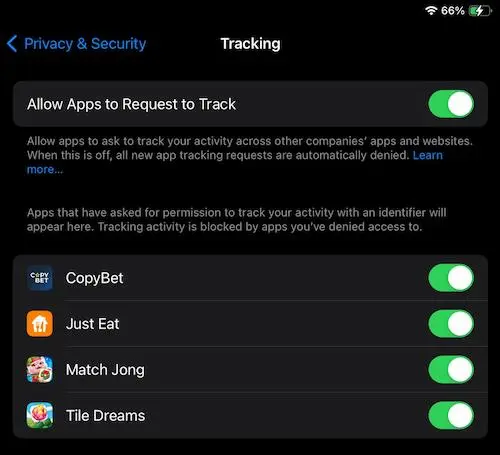
Why is Allow Apps to Request to Track greyed out?
Apple turns this setting off in some situations: for children’s accounts, on some work or school managed devices, and on Apple Accounts that have only just been created. If it’s greyed out, check Apple’s guidance rather than trying to get around it, and choose an offer that doesn’t need tracking permission.
Turn off Safari’s tracking protection
Even if you use Chrome, Safari’s settings affect all browsers on your iPhone, so set these too:
- Open Settings and tap Safari (on recent iOS versions, Settings → Apps → Safari).
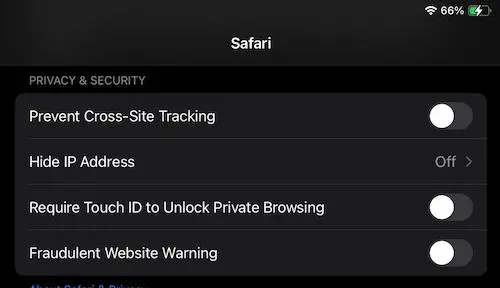
- Turn off Prevent Cross-Site Tracking.
- Turn off Block All Cookies.
- Turn off Hide IP Address.
- Turn off Ask Websites Not to Track Me, if your iOS version has it.
- Scroll to the bottom, tap Advanced, and make sure Privacy Preserving Ad Measurement is on.
Turn off Wi-Fi privacy settings
Your Wi-Fi settings can hide your IP address, which breaks offer tracking:
- Open Settings and tap Wi-Fi.
- Tap the (i) next to your network.
- Turn off Private Wi-Fi Address (called Private Address on older versions).
- Turn off Limit IP Address Tracking.
Turn off iCloud Private Relay
This one is critical. Private Relay hides your IP address, which stops reward sites tracking your offers. Freecash says it must be turned off.
- Open Settings and tap your name at the top.
- Tap iCloud.
- Tap Private Relay.
- Turn Private Relay off.
You’ll only see Private Relay if you pay for iCloud+.
Use Chrome as your default browser
- Download Google Chrome from the App Store.
- Open Settings, scroll down and tap Chrome (on recent iOS versions, Settings → Apps → Chrome).
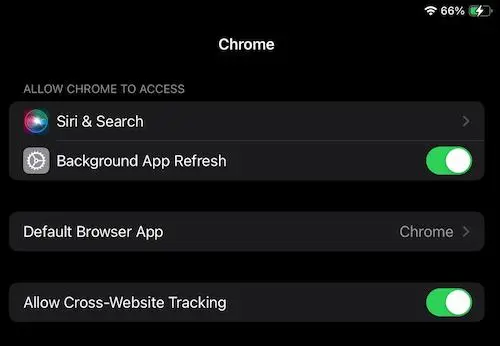
- Set Default Browser App to Chrome.
- Turn on Allow Cross-Website Tracking.
When Chrome asks about cookies, tap Accept all.
Clear Chrome’s cookies before a new offer
- Open Chrome and tap the three dots in the bottom right.
- Go to Settings → Privacy and security → Delete browsing data.
- Tick Cookies, site data and Cached images and files.
- Choose All time.
- Tap Delete browsing data.
Do this before you start a new offer, not while a browser offer is still in progress.
Accept cookies everywhere you’re asked
When you start an offer, accept cookies at every point:
- on the reward site itself (Freecash, Swagbucks and so on)
- on the offerwall, scrolling down if the pop-up is at the bottom
- on any landing page the offer opens before the App Store
If you don’t accept cookies, the tracking chain breaks and you won’t get credit.
Not sure whether you accepted cookies? Clear Chrome’s history and cookies (see above), and the sites will ask you again next time you visit.
Let Chrome open the App Store
Find the offer on your reward site and tap its Start offer or Play button. Chrome will redirect you to the App Store. That’s correct: the tracking details are passed on when the App Store opens. Install the game as normal, open it straight away, and tap Allow if it asks to track you.
Never search for the game in the App Store. Without the offer link there’s nothing to connect the install to your account, and you won’t get paid.
Turn off VPNs and ad blockers
Before starting an offer, turn off:
- VPN apps, such as NordVPN or ExpressVPN
- ad-blocking apps, such as AdGuard or 1Blocker
- Safari content blockers (Settings → Safari → Extensions)
Also check for a custom DNS or filtering profile under Settings → General → VPN & Device Management, and in your Wi-Fi network’s Configure DNS setting, which should be Automatic.
Test with a cheap offer first
Once your settings are done, test your tracking with a low-paying, easy offer before you start anything that takes much time or money. Check the reward site’s activity log to make sure it’s been recorded.
Don’t uninstall or offload the game
Once you’ve installed a game through an offer, the tracking details are stored in the app:
- Don’t uninstall and reinstall the game. This removes them.
- Don’t use Offload App (Settings → General → iPhone Storage), as this can clear tracking data. Check Offload Unused Apps is off too.
- Don’t switch Apple Accounts in the middle of an offer.
- Complete the offer within its time limit, usually 30 to 90 days.
Check the installation or first milestone has tracked before you put in much time or money.
Still not tracking?
- Make sure your iPhone is on the latest version of iOS (Settings → General → Software Update).
- Reinstall the reward site’s app (not the game you’re playing).
- Clear Chrome’s history, cookies and cache, then accept cookies again when you go back to the reward site.
- Check no VPN or ad-blocking feature has turned itself back on.
- As a last resort, reset all settings: Settings → General → Transfer or Reset iPhone → Reset → Reset All Settings. This doesn’t delete your data, but it puts your settings back to normal, so go through the steps on this page again afterwards.
More game tracking guides
- Freecash or Swagbucks Not Tracking? – What to do when a game install, level or reward is missing.
- Android setup – Every Chrome and phone setting to check before you install a game.
- PC and Mac setup – A clean Chrome profile for desktop games, surveys and sign-up offers.
- Freecash Playtime fix – My tested fix when Freecash stopped recording playtime and adverts.
Further reading and sources
- Apple: if an app asks to track your activity – How app tracking permission works, and why it can be greyed out.
- Apple: about iCloud Private Relay – What Private Relay does and how to turn it off.
- Apple: Private Wi-Fi Address – What the private address setting does.
- Freecash: avoiding tracking problems – Freecash’s own list, including Private Relay and VPNs.
- Freecash: how offer tracking works – How game events are reported back to Freecash.