
My experience
Freecash sometimes pays for time spent playing a game or for watching adverts, rather than for reaching a particular level. When both stopped tracking for me, restarting my phone did nothing. The following process got them working again.
This is not a fix for a missing game installation.
It gets future Playtime and advert activity tracking again. I can’t promise that missed rewards will be credited. If your installation or a level hasn’t tracked, see my main game tracking guide instead.
On this page
Check Usage Access first
Freecash’s privacy policy confirms that Playtime on Android uses Usage Access to measure how long you spend in eligible games. If Freecash doesn’t have it, Playtime can’t track.
- Open your phone’s Settings.
- Search for Usage access, or go to Apps → Special app access → Usage access. On Samsung phones, Special access is in the three-dot menu on the Apps screen.
- Tap Freecash and turn on Permit usage access.
Settings → Apps → Special app access → Usage access → Freecash
While you’re in Settings, check Android hasn’t paused Freecash for not being used. Open Apps → Freecash, turn off Pause app activity if unused (or Remove permissions if app is unused), and set battery use to Unrestricted.
The full reset that worked for me
If Usage Access was already on, this is the full reset I did. Leave your games installed throughout.
- Uninstall the Freecash app
Remove the Freecash app only. Don’t uninstall the games you’re playing, or their offers will stop tracking.
- Clear Chrome’s browsing data
The version of Freecash I was using relied on Chrome, so I cleared Chrome’s data too.
- Open Chrome and tap the three dots in the top right.
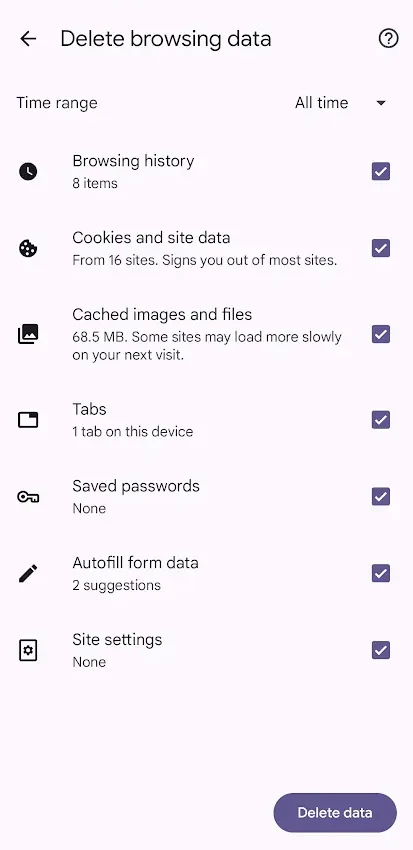
- Go to Settings → Privacy and security → Delete browsing data.
- Tick Cookies and site data and Cached images and files.
- Choose All time and tap Delete data.
This signs you out of other websites in Chrome.
- Reinstall Freecash
Install the Freecash app again.
- Sign in to Freecash in Chrome
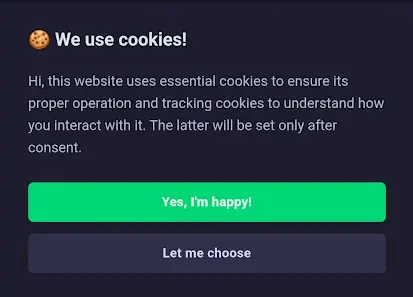
Open the Freecash website in Chrome, sign in and tap Accept all on the cookie pop-up. Then open the Freecash app and check you’re signed in there too.
- Check the app permissions again
For both Chrome and Freecash, turn off the setting that pauses unused apps and set battery use to Unrestricted. Then check Freecash still has Usage Access.
- Launch your games from My Offers
Open Freecash, go to My Offers and open the game from there. Check new playtime and advert rewards appear before you spend more time.
Advert bar still not moving?
Make sure you opened the game through Freecash and allowed tracking, then try switching from Wi-Fi to mobile data. Advert tasks are especially sensitive to tracking. My guide to Freecash games that pay you to watch adverts covers the rest.
Did it work?
Yes. After the reset, both playtime and advert tracking started working again for me. I haven’t worked out which single change fixed it, and app versions and Android menus change, so treat this as what worked for me rather than a guarantee for every phone.
More game tracking guides
- Freecash or Swagbucks Not Tracking? – What to do when a game install, level or reward is missing.
- Android setup – Every Chrome and phone setting to check before you install a game.
- iPhone and iPad setup – The privacy settings that block offer tracking on iOS, and how to change them.
- PC and Mac setup – A clean Chrome profile for desktop games, surveys and sign-up offers.
Further reading and sources
- Freecash privacy policy – Confirms that Playtime on Android uses Usage Access.
- Freecash: avoiding tracking problems – Freecash’s own list of settings that stop tracking.
- Google Chrome: delete browsing data – Google’s instructions for clearing Chrome’s data.