
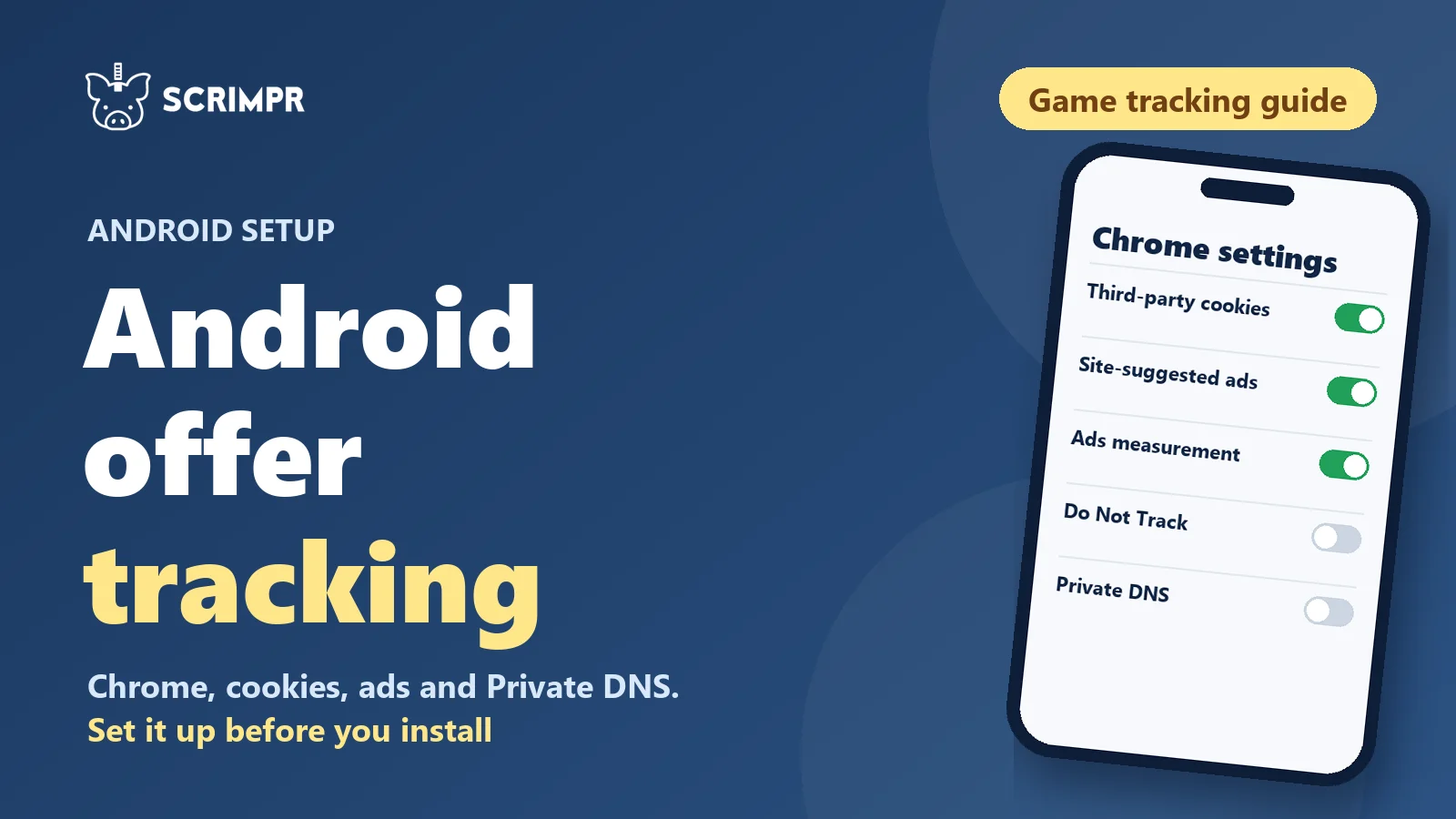
Android phones generally track get-paid-to offers better than iPhones, but you still need to set them up properly. These are the settings I use before installing any game through Freecash, Swagbucks or another reward site.
Menu names differ slightly between Samsung, Google Pixel and other Android phones. If you can’t find a setting, search for it in the Settings app.
Already installed the game?
Changing these settings now is unlikely to fix a game that didn’t track when you installed it. Don’t uninstall the game or reset your advertising ID to try to fix it. See my main game tracking guide for what to do next.
On this page
- Use Google Chrome
- Clear Chrome’s cookies before a new offer
- Set Chrome’s ad privacy settings
- Allow third-party cookies and turn off Do Not Track
- Accept cookies everywhere you’re asked
- Turn off VPNs, ad blockers and Private DNS
- Check your advertising ID
- Start every offer from the reward site
- Test with a cheap offer first
- Don’t uninstall the game or clear its data
- Doing Freecash Playtime or advert offers?
- More game tracking guides
- Further reading and sources
Use Google Chrome
Chrome is the best browser for Android offers because tracking is enabled by default. If you don’t have it, download it from the Play Store. When it asks about cookies, tap Accept all.
Always start offers in Chrome. Many game offers open in your default browser, so set Chrome as your default:
- Open Settings and search for Default apps.
- Tap Browser app.
- Choose Chrome.
Unlike on a computer, Chrome on your phone uses your main Google account. There’s no separate profile or Guest mode, so the settings below apply to all your browsing in Chrome.
Clear Chrome’s cookies before a new offer
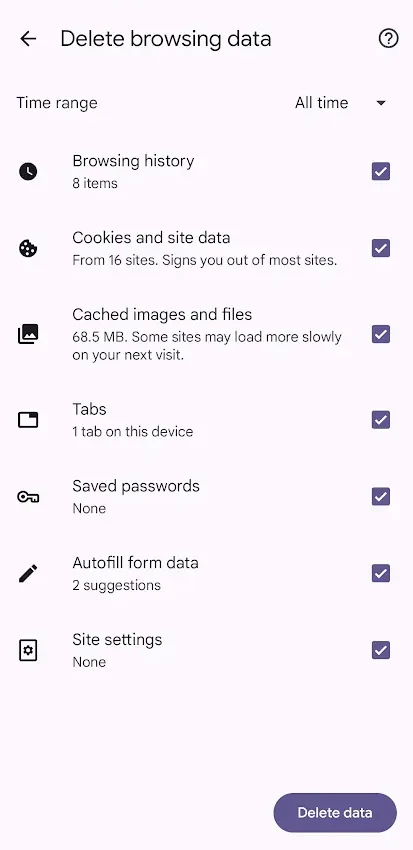
Before starting a new offer, clear out old tracking data:
- Open Chrome and tap the three dots in the top right.
- Go to Settings → Privacy and security → Delete browsing data.
- Tick Cookies and site data and Cached images and files.
- Choose All time.
- Tap Delete data.
For a completely clean slate, reset Chrome through your phone’s settings:
- Open Settings and tap Apps.
- Select Chrome and go to Storage and cache.
- Tap Clear storage and confirm to clear all data.
- Tap Clear cache.
Clearing Chrome signs you out of other websites. Do it before you start a new offer, not while a browser offer is still in progress.
Set Chrome’s ad privacy settings
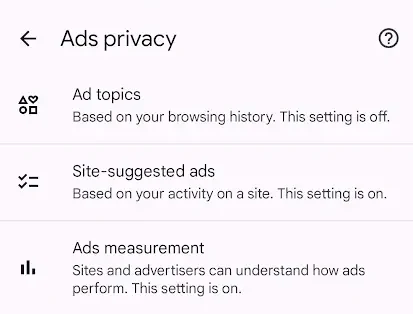
- Open Chrome and tap the three dots, then Settings.
- Go to Privacy and security → Ads privacy.
- Turn Ad topics off.
- Turn Site-suggested ads on.
- Turn Ads measurement on.
Allow third-party cookies and turn off Do Not Track
Reward sites and offerwalls need to place tracking cookies:
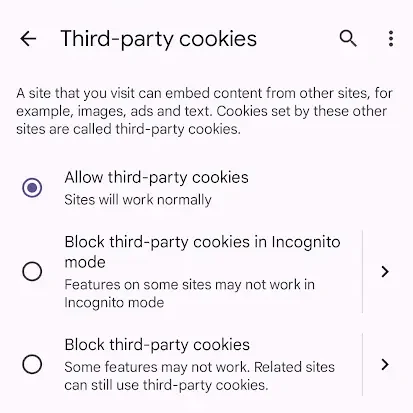
- Open Chrome and tap the three dots, then Settings.
- Go to Privacy and security → Third-party cookies.
- Tap Allow third-party cookies.
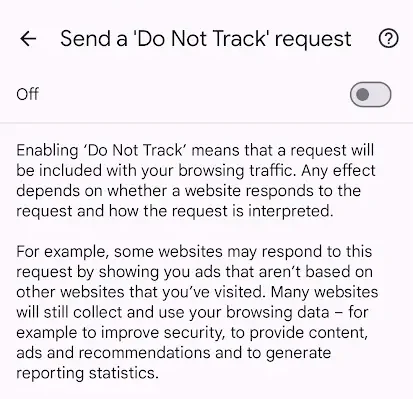
Then turn off Do Not Track requests:
- Go back to Privacy and security.
- Tap Send a “Do Not Track” request.
- Make sure it’s turned off.
Accept cookies everywhere you’re asked
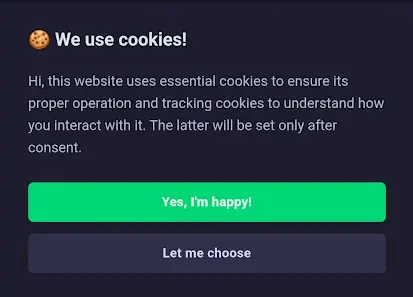
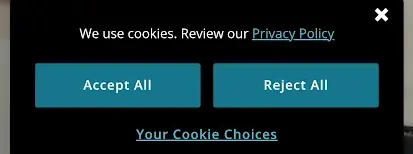
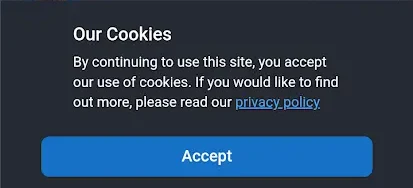
When you start an offer, accept cookies at every point:
- on the reward site itself (Freecash, Swagbucks and so on)
- on the offerwall, scrolling down if the pop-up is at the bottom
- on any landing page the offer opens before the Play Store
If you don’t accept cookies, the tracking chain breaks and you won’t get credit.
Turn off VPNs, ad blockers and Private DNS
These interfere with offer tracking, and Freecash specifically asks you not to use them. Before starting an offer, turn off:
- VPN apps, such as NordVPN or ExpressVPN
- ad-blocking apps, such as Blokada or AdGuard
- Private DNS
To turn off Private DNS, search Settings for Private DNS. On Samsung phones it’s usually under Connections → More connection settings, and on Pixels under Network and internet. Set it to Off.
Check your advertising ID
Some offers use your phone’s advertising ID to match the game to your reward account. Search Settings for Ads or Advertising ID. On recent Android versions it’s under Settings → Privacy → Ads (on Samsung, Security and privacy → Ads).
Make sure the advertising ID hasn’t been deleted. Don’t reset or delete it while an offer is in progress, and don’t reset it to try to qualify for an offer again.
Start every offer from the reward site
Find the offer on your reward site and tap its Start offer or Play button. There are two ways this then works on Android:
- Straight to the Play Store. Most game offers redirect from Chrome straight to the Google Play Store. That’s correct: the tracking details are passed on when the Play Store opens. Install the game as normal.
- Through the reward site’s app. The Freecash and Swagbucks apps open offers in a browser view inside the app, which then redirects to the Play Store. This tracks too.
Never search for the game in the Play Store or on Google. Without the offer link there’s nothing to connect the install to your account, and you won’t get paid. Pick one reward site for each offer, and open the game as soon as it’s installed.
Test with a cheap offer first
Once your settings are done, test your tracking with a low-paying, easy offer before you start anything that takes much time or money. Check the reward site’s activity log to make sure it’s been recorded.
Don’t uninstall the game or clear its data
Once you’ve installed a game through an offer, the tracking details are stored in the app:
- Don’t uninstall and reinstall the game. This removes them.
- Don’t clear the game’s data (Settings → Apps → [game] → Storage → Clear data).
- Don’t clear the game’s cache unless you have to.
- Complete the offer within its time limit, usually 30 to 90 days.
Check the installation or first milestone has tracked before you put in much time or money, and screenshot the offer requirements.
Doing Freecash Playtime or advert offers?
Playtime offers are different: Freecash needs Usage Access to measure how long you spend in a game.
Settings → Apps → Special app access → Usage access → Freecash
If Playtime or advert rewards have stopped, follow my Freecash Playtime fix.
More game tracking guides
- Freecash or Swagbucks Not Tracking? – What to do when a game install, level or reward is missing.
- iPhone and iPad setup – The privacy settings that block offer tracking on iOS, and how to change them.
- PC and Mac setup – A clean Chrome profile for desktop games, surveys and sign-up offers.
- Freecash Playtime fix – My tested fix when Freecash stopped recording playtime and adverts.
Further reading and sources
- Freecash: avoiding tracking problems – Freecash’s own list, including VPNs, ad blockers and custom DNS.
- Freecash: how offer tracking works – How game events are reported back to Freecash.
- Google Chrome: manage cookies – Chrome’s cookie controls and site exceptions.
- Google: advertising ID – What the Android advertising ID is and how apps use it.